MyChart Dual Factor Authentication
Starting April 9th, 2025, Dual Factor Authentication (2FA) will be required to access your Middlesex Health MyChart account. If you have already set up this feature, there is no need to repeat the process. However, if prompted to set it up during sign-in, you will be guided through the necessary steps on this page.
How To Set Up Dual Factor Authentication
If you have not set up Dual Factor Authentication prior to April 9th 2025, you will be prompted to do so the next time you log in to your Middlesex Health MyChart account. Here’s how to proceed:
1. Enter your username and password on the sign-in page.
2. After entering your login credentials, you will be prompted to select “Set up two-step verification.”

3. On the next screen, verify the email address and phone number associated with your account. After confirming your information, click Continue.
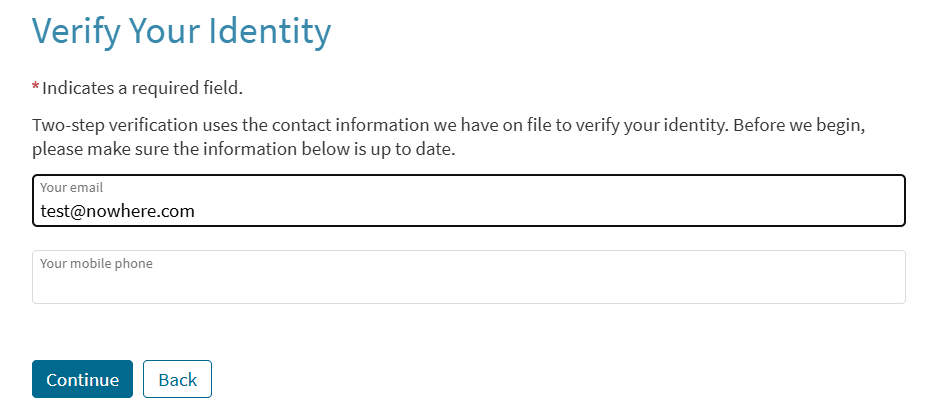
4. Enter the verification code that you receive via your selected method to complete the setup.

To set up Dual Factor Authentication on the Middlesex Health MyChart website, follow these steps:
1. First, log in to your Middlesex Health MyChart account.
2. Click on the menu icon located in the top-right corner of the page.

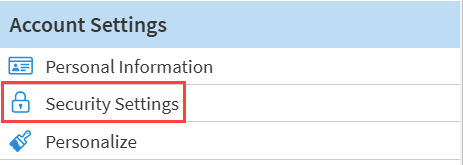
- Receive a code via email or phone number.
- Use an authentication app to receive a code.

5. After selecting your preferred method, you will be prompted to enter your password to finalize your 2FA setup.
To set up Dual Factor Authentication in the MyChart mobile app, follow these steps:
1. In the app, click on your initials in the top-right corner and select “Account Settings”.

2. Scroll to the “Two-Step Verification” section and choose one of the following:
- Receive a code via email or phone number.
- Use an authentication app to receive a code.

3. After selecting your preferred method, you will be prompted to enter your password to complete the setup process.
Frequently Asked Questions
Two-factor authentication (2FA) is a security process designed to ensure that only you can access your account. It requires two steps to complete the login process:
- Enter your username and password.
- Enter a code that is sent to you via email, text, or an authentication app.
Not always. Once you log in for the day, your session will stay active as long as you use the same device and browser. If you switch devices or browsers, you will be asked to enter a new code.